
ParentSquare: Our New District Communication Tool
Clear, consistent communication is essential to keeping our community informed and connected. St. Vrain Valley Schools has been exploring ways to strengthen districtwide communication and simplify how information reaches families and staff. To support these efforts, we will begin using ParentSquare, a new district communication tool that allows families and staff to receive messages and notifications based on their preferences. St. Vrain’s communications team will pilot ParentSquare for the remainder of the school year with plans to expand access to all schools at the start of the new school year.
On April 1, St. Vrain families and staff will receive an email invitation directly from ParentSquare to activate their account, with the option to download the mobile app, set language preferences, and choose how and when to receive notifications. While registration or downloading the app is not required, and communications will continue to be sent via email, text, and voice to the contact information listed in Infinite Campus, doing so allows users to confirm their information and school associations are accurate and to customize notification settings.
ParentSquare Tools and Features:
- Receive messages via email, app, voice, or text
- Choose to receive communications immediately or in a daily digest
- Access communications in your preferred language
We’re excited about the opportunities ParentSquare offers to streamline communication and will be working toward consolidating several tools currently used into one convenient platform.
Below, you’ll find FAQs, resources, and step-by-step instructions to help you understand how ParentSquare works and how you can access notifications, language settings, and more.
ParentSquare Resources
Frequently Asked Questions
Do I need to download the app and register in order to get communications?
No, downloading the app and registering is not required. However, using the app offers several advantages, including the ability to customize notification and language preferences, receive push notifications, access communications for multiple children (if applicable) in one convenient location, and view past newsletters and alerts, among other features.
How does ParentSquare determine my email and phone number?
ParentSquare pulls your information, including email and phone number, from Infinite Campus. If any updates are needed to your personal information, please make changes in Infinite Campus directly by using the Parent Portal or contact your school’s registrar to make those changes for you.
Will this impact how I receive newsletters from my child’s school?
We will transition to ParentSquare for school newsletter communications beginning in the 2026-2027 school year. Newsletters will be delivered directly to your email inbox and will also be accessible through your ParentSquare account via the app or desktop platform should you choose to register.
How often will I be receiving communications from ParentSquare?
For the remainder of the 2025-2026 school year, ParentSquare will be used to distribute Superintendent Updates, urgent school notifications, and other districtwide communications. Families will continue to receive school-specific updates directly from their child’s school through Infinite Campus or via the school’s newsletter for the remainder of the school year.
Who do I contact with questions about ParentSquare?
Please fill out this form with any questions you may have and the communications team will reach out to you.
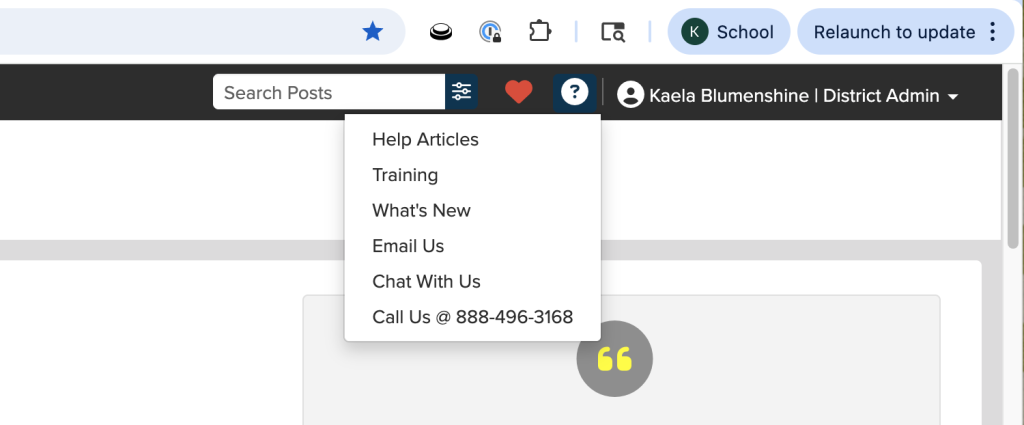
ParentSquare also offers a variety of resources for additional help. Once logged into your account, you can select the question mark icon in the top right hand corner for a variety of help options including help articles, an email portal, a chat portal, or a phone number to call. Please note, you will need to be logged in to your ParentSquare account to access these help options.
What if I am a staff member and also have a student in St. Vrain?
Staff members who have a child attending a St. Vrain school will receive a separate invitation sent to their staff email and will need to register a parent account in addition to their staff account. Once both accounts are registered, they will be able to toggle between their staff and parent profiles in the ParentSquare app. The ParentSquare app is the quickest and easiest way to see both staff and parent notifications in one place.
Please note: ParentSquare supports one email per user. Staff members who are also parents in St. Vrain will receive school communications through their district email.
For more information about Parent and Staff accounts, visit ParentSquare to view their help article. You must first create your account and be logged in to view any help articles.
When I change my notification settings, what does “Digest” mean?
Digest is a feature that only applies to “Posts”. Posts will be how your school sends their newsletter beginning in the 2026-2027 school year. If you choose to utilize the digest setting, it will mean you will get an email once in the evening that will showcase any posts that went out from your child’s school if any were sent that day. The goal of this is to limit the amount of communications families are receiving throughout the day for non-emergency situations. This feature is not required and can be changed in your notification settings if needed. If you choose not to utilize this feature, you will receive the post in your email inbox as soon as it is sent out.
Additional Resources
- How to Download the App
- Activate My Account
- How to Personalize My Account Settings
How to Download the App and Activate My Account
The app can be downloaded by searching for “ParentSquare” on the App Store or through Google Play. We recommend downloading the app after following the welcome email and activating your account.
Activate your ParentSquare Account
- Your school will send you an invitation using your email address or phone number on file.
- Open the invitation from ParentSquare in your email.
- Click Activate your account or tap the link to go to the account registration page.
- Enter your email or phone number, then click Get Started. (Optional: You can also sign in with Google or Microsoft.)
- Check your contact information. If it looks correct, click Confirm. You’ll receive a code by text or email.
- Enter the verification code when asked.
- You’ll see your child(ren)’s names. Click Confirm next to each child who should be connected to your account. If a child is listed by mistake, click Not my child.
- If everything looks correct, click Yes, this is me. Now you’re ready to start using ParentSquare.
From the browser:
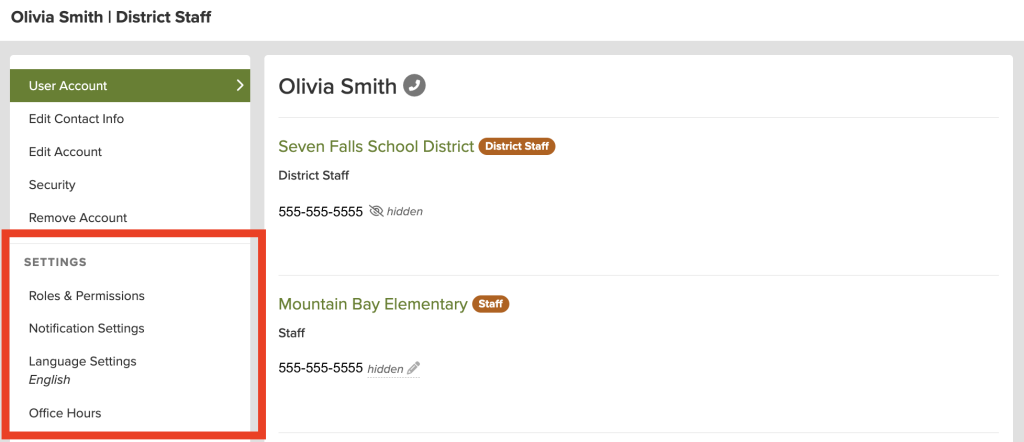
- From Home, click your name in the top right and select Manage Account.
- The following options under Settings in the left sidebar are available to view and edit:
- Roles & Permissions
- Notification Settings
- Language Settings
From the app:
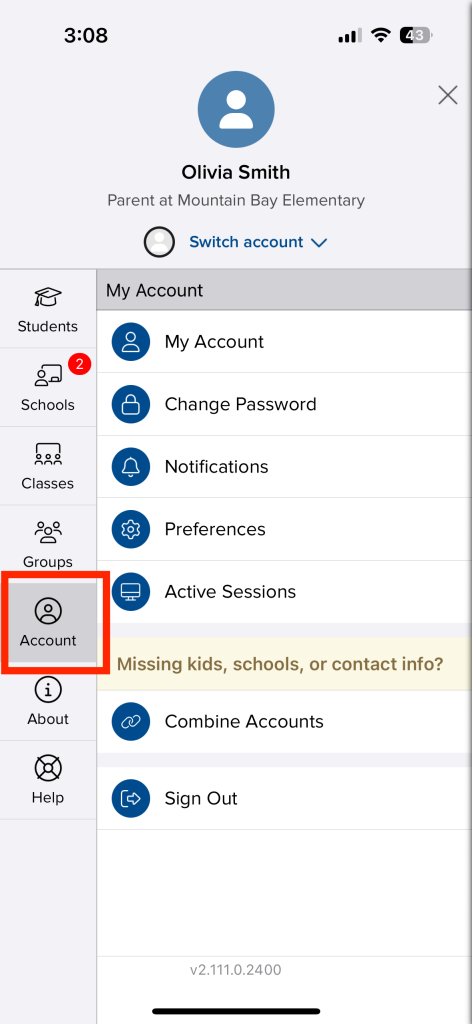
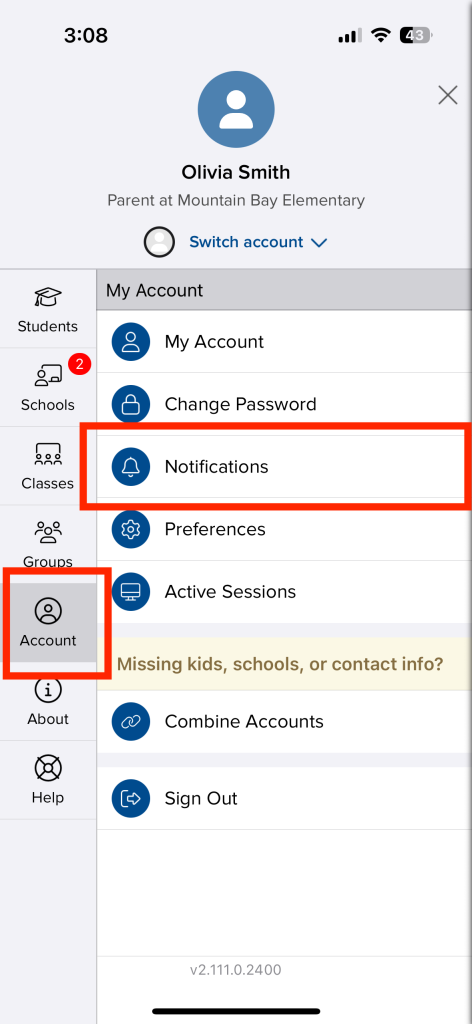
- Tap the triple-bar menu in the top left.
- Tap Account on the left and select Notifications, and Preferences (for Languages and Office Hours).
Notification Settings
You can customize notification preferences by notification type and select your preferred delivery method for each school and district.
Notification types include:
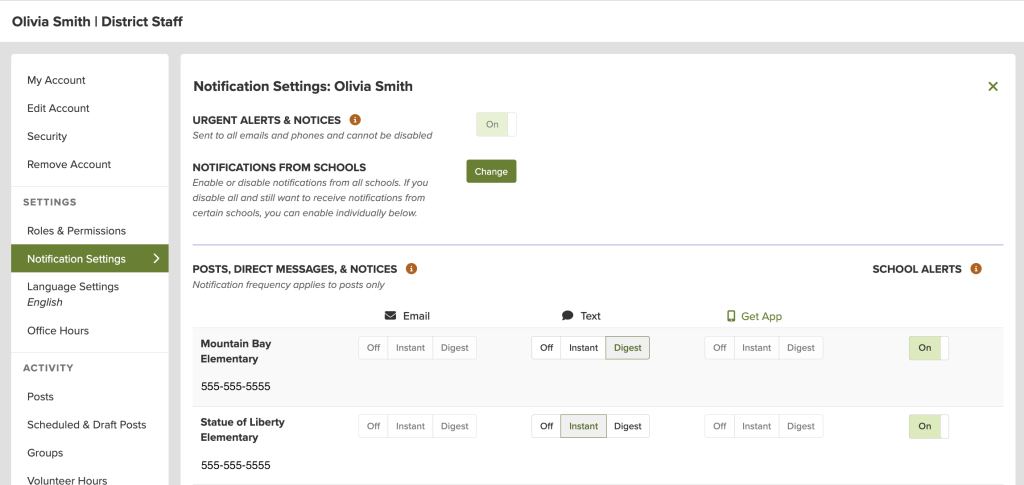
- Urgent Alerts & Notices – urgent alerts and auto notices marked as critical notices. These notifications cannot be disabled.
- Posts, Direct Messages & Notices – choose how you want to receive notifications, by Email, Text, and/or App. Notification frequency (Instant vs Digest) applies to posts only.
- School Alerts – smart alerts and other student notices. These notifications can be disabled but cannot be customized by frequency for text, email and/or app.
How to set Notification Preferences
From the browser:
- From My Account, click Notification Settings in the left sidebar.
- Choose your preferences:
- Instant: notifications are delivered as soon as possible after a post is sent.
- Digest: notifications are delivered in the evening in the time zone of the institute. Digests only apply to posts. All other message types will still be delivered instantly if the user has their preference set to digest.
- Off: If the user selects Off, no notifications will be delivered to this email/phone/app for the school or district. Note: The Off setting is overridden for urgent alerts.
- School Alerts: Set preferences for alerts and notices. Note: Ugent alerts are unaffected by these settings – they will be delivered regardless of user preferences.
- On: You will receive all Smart Alerts and Auto Notices from this school or district.
- Off: You will only receive Urgent Alerts and Critical Auto Notices.
- Set preferences separately by school or district.
- If you have multiple emails or phones listed on your account, set the order of your preferred contacts to receive notifications. Notifications will only be sent to one email and one phone on your account.
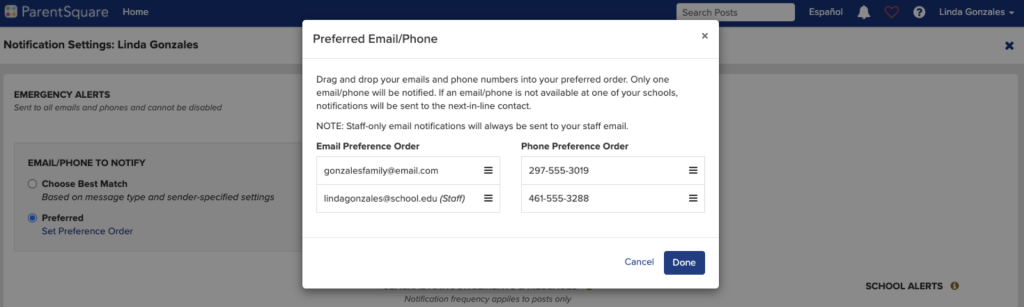
Note: the Choose Best Match setting will select the most relevant email and phone to send the notification to. If Digest is selected and there is at least one notification in the Digest that includes parents, the digest will be sent to the parent email.
From the app:
- Tap the triple-bar menu in the top left.
- Tap Account in the left sidebar and select Notifications.
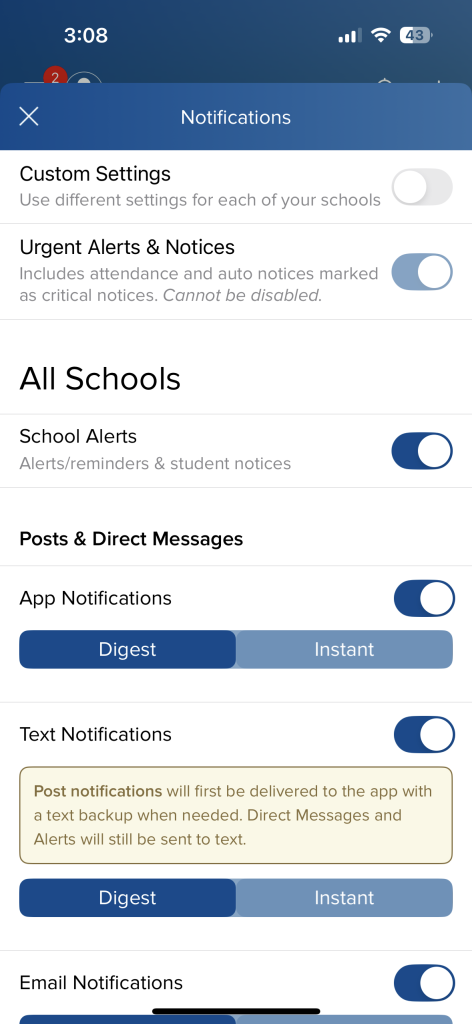
- Choose your preferences:
- Custom Settings: toggle on/off the ability to set notifications by school site.
- Urgent Alerts & Notices: this setting is managed by your school or district and can not be toggled on/off for individual users.
- School Alerts: toggle on/off receiving alerts and student notices.
- App Notifications: toggle on/off receiving app notifications. If toggled on, tap Digest or Instant to set frequency.
- Text Notifications: toggle on/off receiving text notifications. If toggled on, tap Digest or Instant to set frequency.
- Email Notifications: toggle on/off receiving email notifications. If toggled on, tap Digest or Instant to set frequency.
Language Preferences
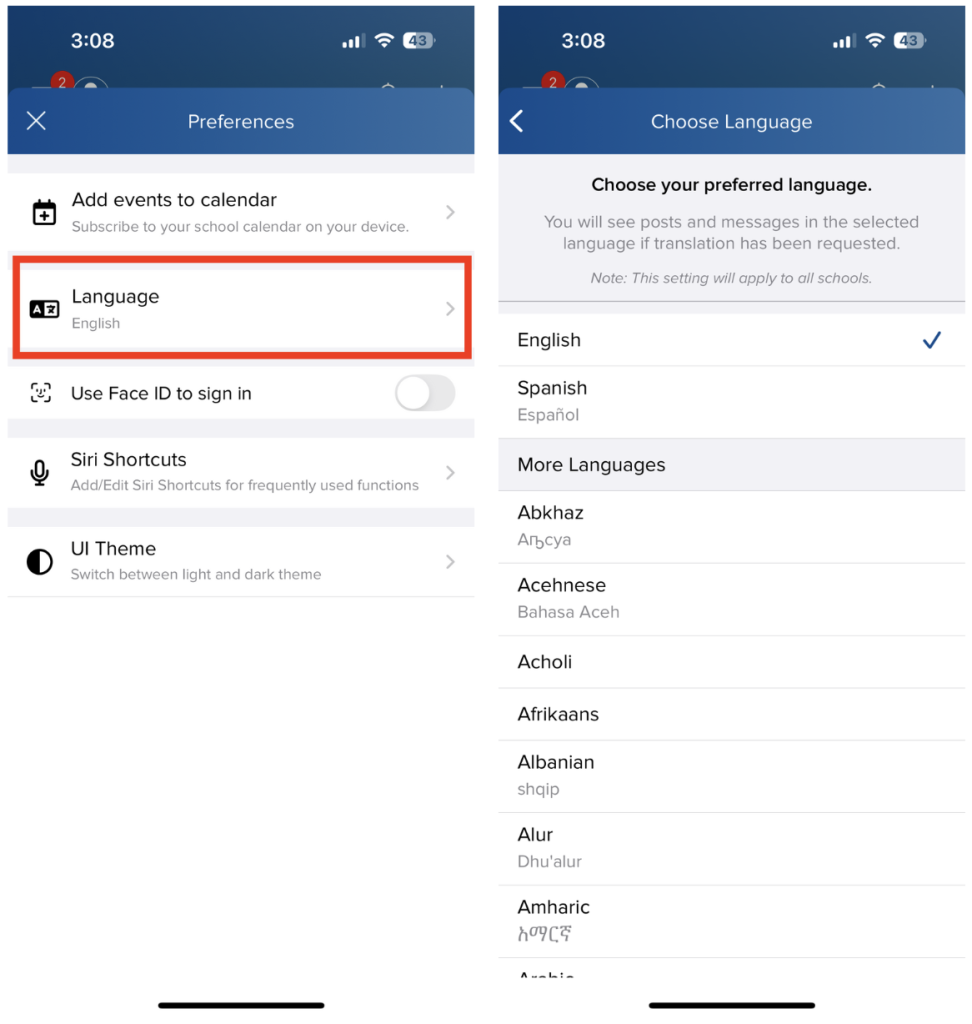
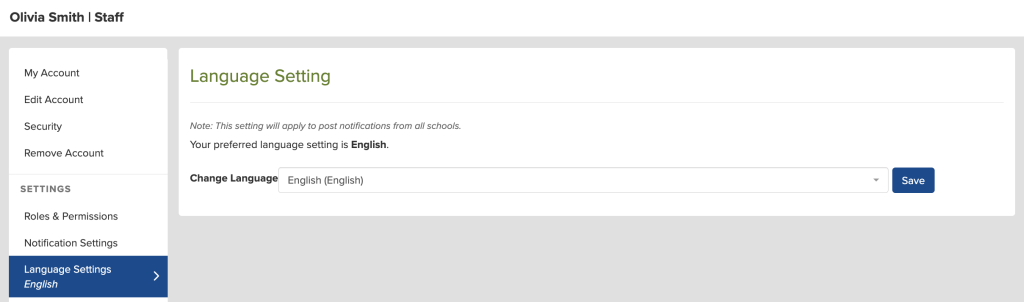
ParentSquare supports 190+ languages with automatic translation of school communications. Choose your preferred language for receiving school communications.
From the browser:
- From My Account, click Language Settings in the left sidebar.
- Select your preferred language from the drop-down menu.
- Click Save.
From the app:
- Tap the triple-bar menu in the top left.
- Tap Account in the left sidebar and select Preferences.
- Tap Language and select from the list.